
Recording your calls might provde quite useful in many cases especially if you are going through legal cases or implications. You can prove your point by showing the recordings as proof. In this article, we will learn how to record calls on iPhone. Officially iPhone doesn’t let you record your calls but with some tricks and third party methods you can record your calls on iPhone.
Well, there are many apps on the Apple App store but most of them needs third party support for call recording on iPhone.
Methods to Record Call on iPhone
1. Google Voice for Recording Calls on iPhone
Google voice is a cloud phone system that works on the principle of voIP feature. It also offers you a phone number for individual or business purpose based upon your needs. You can use Google Voice to record call on iPhone.
In order to record the call on iPhone you need to toggle an option. Below are the steps for iPhone Call recording.
- Download the Google Voice app from Apple app store for iOS and open it.
- Select a free phone number and which device to use to make the voice calls.
- Now open the Settings on Google Voice and select Calls.
- On the Calls option, toggle on the Incoming call options.
- While you are on call, click on the number 4 on the keyboard to start recording the call. By Default call recording is not active.
- If you wish to stop the call recording, press number 4 again.
2. Record Calls on iPhone using TrueCaller
Another way to record call on iPhone or android is using the Truecaller option. Truecaller’s latest version allows one to record calls. This feature is not available in the free version, you need to buy the paid subscription of Truecaller. For iPhone you need to merge the recording line and call. For android smartphone you just need to tap during the call. After that you will be directed to a link to your call recording file.
- Download & install TrueCaller application on your iPhone.
- Pick the incoming call, open the TrueCaller app, and head to the Search tab.
- Next, tap the Record a Call button and call the recording line.
- Look for the merge call option on your screen Then you need to tap on the Merge Call to merge those two calls.
- Once you end the call, a push notification will pop-up that will direct you to the call recording file. The files will be stored on your phone’s internal storage as well as on your icloud.
- For iPhone call recording, you need to follow the same steps.
3. Record your iPhone Call using Voice Memos.
Voice Memos is basically an app that allows you to record voice on iPhone. Do not mistake it as an inbuilt call recording app. It is simply a voice recorder. In order to use voice memos for recording your iPhone calls, you need another iPhone.
- First you need to Download & install the Voice Memos app from the Apple App Store on your iPhone device.
- Open the Voice Memos app and keep it in proximity to your first iPhone for which you wish to record the call.
- Click on the red button to turn on the voice recording on second iPhone.
- Make a call to the desired recipient from the first iPhone and turn on the speaker of the first iPhone. Let the phones be closer to each other so that the call recording voice be recorded on second iPhone device.
- Now again click on the red button when you need to stop recording the voice.
Now you can access the voice recording of the call through Voice Memos app and share it with yourself through email or Google drive.
4. Rev Call Recorder App for iOS
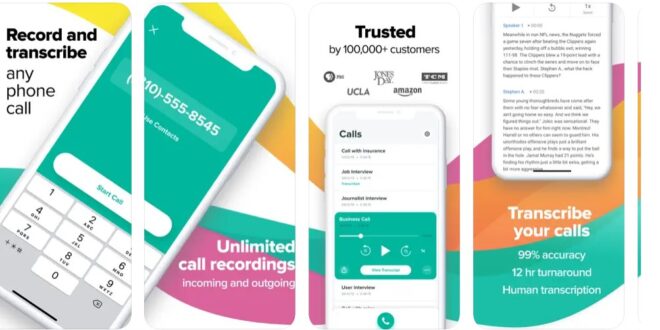
Rev Call recording app allows you to record your call for free. This is basically a three way call recorder app. You should only use this third party call recording app for iPhone only if you agree with their terms and conditions. There is no limit on the call recording. You can record unlimited calls.
- Got to the Apple App Store, download & install the Rev Call Recorder app on your iPhone device.
- Open the RevCall app, type in your phone number, and verify it.
- Once verified, tap on the phone call button.
- Type in the number of the recipient of call you want to call and tap Start Call.
- During the call, the call will automatically be recorded and once the call ends, the recording will pop up on the main screen.
5. Using Android Voice Recorder
If you are not sure about the safety and privacy in using the third party iPhone call recorder apps, you should use Android Voice Recorder app to record the call.
Just make a call on your iOS device, turn on its loudspeaker
Place the iPhone close to the android smartphone.
Turn on the Voice recorder of the android smartphone by clicking the red button.
So, these were the methods to record a call on iPhone device. Stay tuned to TechAdvises for more such iPhone tech tutorials, tips and tech news. If you have any query feel free to ask us through the comments section below.

