How to View your Google Play Store Purchase History on Windows/Android

Google playStore is a hub to a large number of android apps for various functionalities be it work producitvity, music, video editing, learning, gaming etc. It has free as well as paid apps and subscriptions for in app elements and tools. You may need to make in app purchases. If you have made purchases from Google play store and wish to see all your purchases and subcriptions till date, we will help you out.
View Google Play Store Purchase History on Desktop
Let us learn how to view google playstore purchase history on Desktop.
Step 1: Open Google Play Store on your Windows desktop or Mac desktop. Log in with your Gmail account for which you want to check the Google play store purchase history.
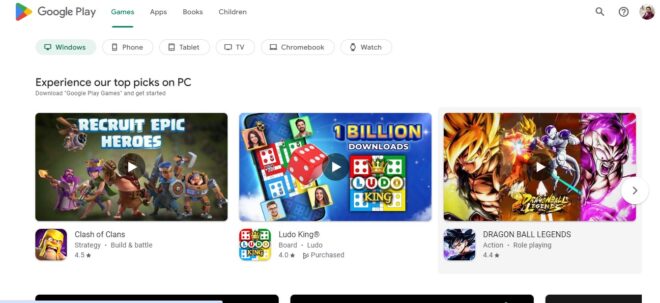
Step 2: Click on your profile picture icon
Step 3: Now click on Payments and Subscriptions option from the drop down menu.
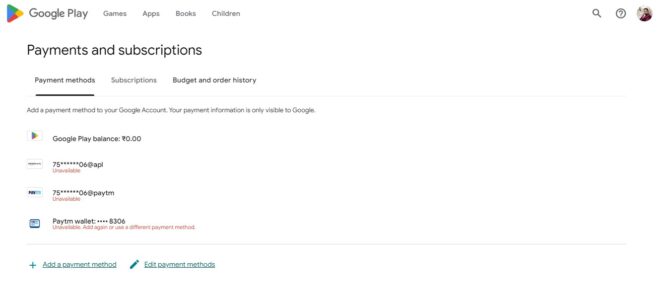
Step 4: Now click on Budget and Order History option from the options.
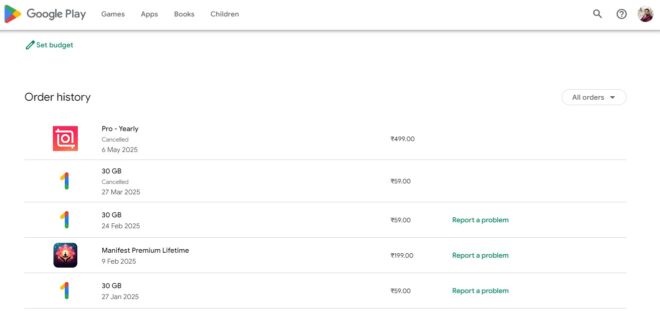
Step 5: Here you can check all your purchase orders till date.
How to View Google Playstore purchase History on Android
Step 1: Open Google Playstore on your android smartphone
Step 2: Click on your Profile picture
Step 3: Tap on Payments and Subscriptions option from the drop down menu.
Step 4: Tap on the Budget and History option from the drop down menu.
Step 5: In the list you can view all the google play store app based purchases and order history.
How to Delete Google PlayStore Purchase History
One can not officially delete the Google PlayStore purchase history but yes you can remove the purchase items from the history one by one.
Step 1: Click on your profile icon
Step 2: Click on Payments and Subscriptions
Step 3: Click on Budget and history
Step 4: Click on 3 dots on the right corner of each purchase item
Step 5: Now click on Delete Forever option to delete the item from the menu.
Also Read: How To Restore Google Chrome Tabs After a Crash
So, these were the steps to view Google Play Store purchase History on Android smartphone. Stay tuned to TechAdvises for more such Tech information, windows and android tech tutorials.

