
Many of you must have faced the ERR_SSL_VERSION OR CIPHER_MISMATCH error while opening a website or webpage. The “ERR_SSL_VERSION_OR_CIPHER_MISMATCH” error indicates that your web browser and the website you are trying to access cannot agree on a common SSL/TLS protocol version or cipher suite for safe and secure communication. This doesn’t allow creating a secure connection (SSL handshake failure).
There may be multiple reasons for the ERR_SSL_VERSION OR CIPHER_MISMATCH error. The error message also occurs when the downloaded certificate on your PC is damaged or the system configuration for TSL/SSL is misconfigured. If you get this error, here’s what you should do.
ERR_SSL_VERSION OR CIPHER_MISMATCH Error Solution
1. Use the HTTP version of the Website

Sometimes there may be an issue with the SSL certificate, the certificate may be expired or damaged. To access the website try using http in the url bar instead of using the https version of the site.
For example, use https://www.techadvises.com instead of typing https://www.techadvises.com We hope that this will resolve the SSL/TLS error, if the issue still persists it means there is an issue with the website. We suggest you to wait till the owner of the website resolves the issue.
2. Incorrect System Date and Time
The SSL error might also occur due to an incorrect system date and time. Make sure that the windows time and date are correct. follow the steps given below to resolve the date and time in Microsoft Windows 10.
Select Start and then select Settings > Time & language > Date & time.
3. Clear SSL Certificate Cache
Clearing the SSL certificate cache often solves the ‘ERR SSL VERSION OR CIPHER MISMATCH’ problem. To clean the SSL certificate cache on Windows, follow these steps.
1. Open the Windows search menu and search for Internet Options
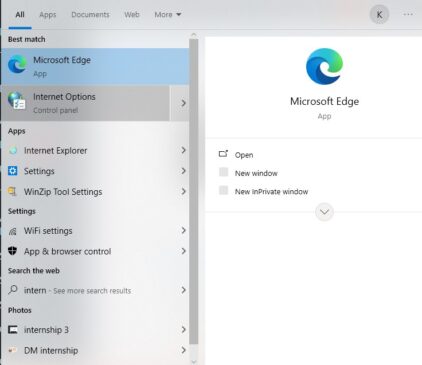
2. Open Internet Options from the list and click on the Content tab option in the menu.
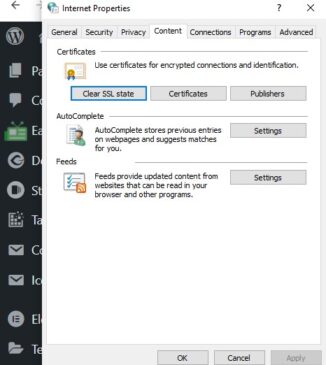
3. Click on the option Clear SSL state.
4. Changing Chrome’s Flag Settings
If you are still facing the issues then you need to change the settings in chrome.
1. Open the Google Chrome browser, and in the URL Bar, and type chrome://flags.
2. Try to search for the the option ‘Minimum SSLv3 version Support’ and change that option to ‘SSLv3’
In order to process the changes one needs to restart the Google chrome. Once done, visit the website, and you will no longer get the ‘ERR SSL VERSION OR CIPHER MISMATCH’ error message.
5. Disable QUIC Protocol on Chrome
If all the above 4 options don’t work try using the 5th option, disabling the QUIC Protocol. QUIC (Quick UDP Internet Connections) isa transport layer network protocol designed to improve speed and security as compared to TCP. This protocol was designed by Jim Roskind at Google. It is built on top of UDP (User Datagram Protocol) and is used as the transport layer for HTTP/3.The primary goal of this protocol is to reduce the latency compared to that of TCP (Transmisson control Protocol). The ERR_SSL_VERSION OR CIPHER MISMATCH error may occure due the QUIC protocol.
Let us check the steps to disable QUIC Protocol on Google chrome browser.
1. Open the Google Chrome browser on your computer.
2. Open this web address: chrome://flags/
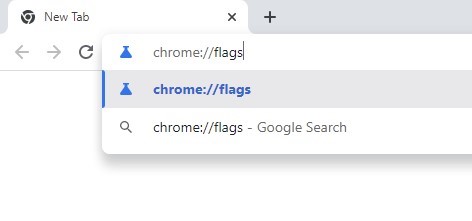
3. On the Experiments page, search for QUIC.
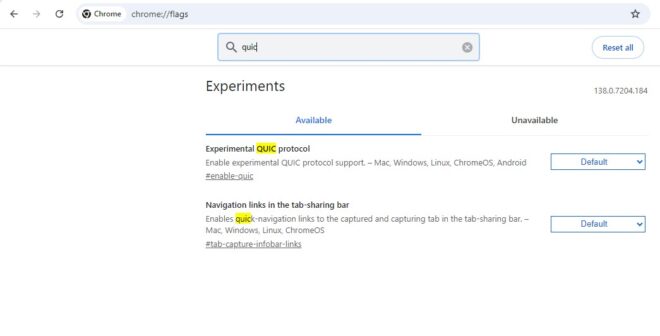
4. Click on the Experimental QUIC Protocol drop-down and select the 3rd option Disabled to disable the QUIC Protocol.
Also Check: Best Elementor Alternatives for WordPress Users
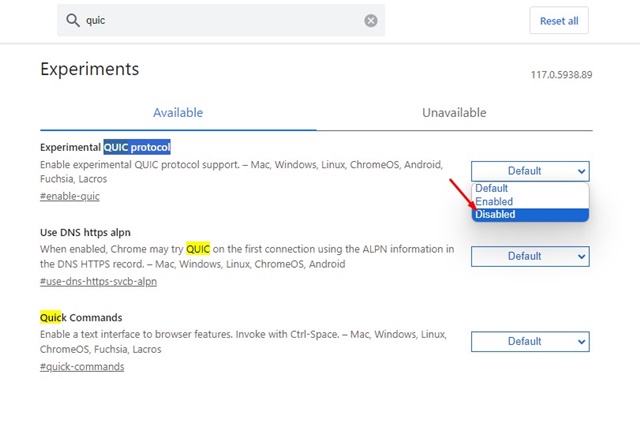
After making the changes, restart your Google Chrome browser. We hope this will resolve the ERR_SSL_VERSION OR CIPHER_MISMATCH error.
5. Clean Junk Windows Registry
The err SSL Version or cipher mismatch error message also occurs due to a junk Windows registry. You can remove the junk windows registry using third party software like CCCleaner. The software is available free for Microsoft Windows.
Open the official website of CCleaner, Download & install CCleaner software on your Windows PC and look for the Registry tab. Under the registry tab, click ‘Scan for Issues’. Wait for a few seconds until the CCleaner scans the junk entries. Once done, it will list all registry entries that can be fixed. Click on the ‘Fix Selected issues’.
Also check: Best VPNs for Netflix users
So, these were the best ways to fix ‘ERR_SSL_VERSION OR CIPHER_MISMATCH’ error in web browser. If you face any issue while resolving the error, feel free to ask us through the comment section below. Stay tuned to TechAdvises for more such browser errors and SSL troubleshooting tips.


Comments are closed, but trackbacks and pingbacks are open.