
You must have encountered various error codes while using windows 10 or Windows 11. Today, we will discuss about one such error, Event ID 1001 Windows error. Windows Event Error 1001 is a generic Windows Error Reporting event that can mean a variety of issues, most commonly a Blue Screen of Death (BSOD) , a probable Windows system crash, or a program malfunction. Let us first understand the possible causes of the Event ID 1001 error.
- Insufficient free RAM
- Failed Windows upgrade
- An antivirus is creating conflict with the windows security
- Corrupted System Files
- A Faulty module, specific file or component causing the crash.
- Viruses/Malware Causing error 1001
- High Disk Usage/Low Disk Space
1. Scan for Malware
Look for the windows security option in the search bar.
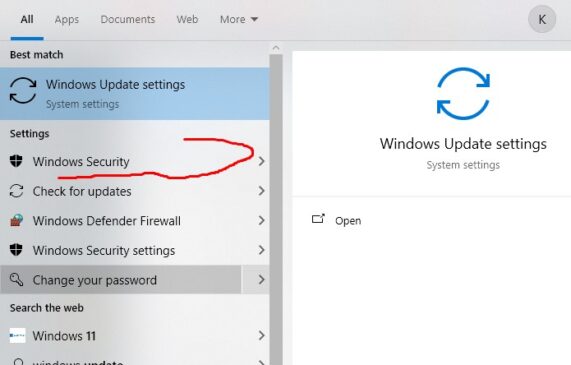
Under the Windows security option look for the Virus and threat protection option.
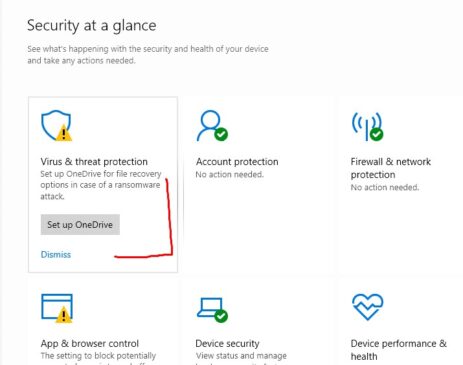
Click on the Virus and threat protection option. Now click on the scan option.
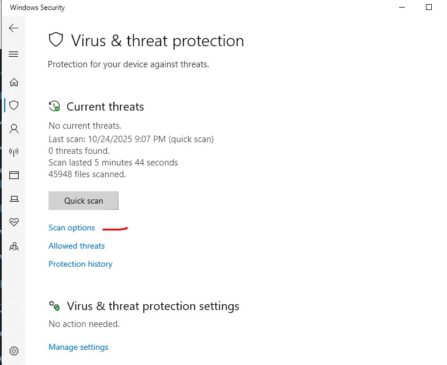
Under the scan options click on the Full scan option to perform a full malware scan of your PC’s hard disk. This can may take some time.
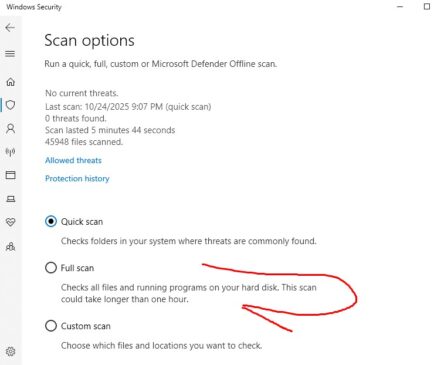
Also Check: How to Resolve Err SSL Version or CIPHER Mismatch Error
2. Update Drivers
Another way to fix Event ID 1001 Error in Windows is to update your device drivers.
Open Device Manager from your PC.
Now look for the drivers that are outdated or have issues. Those drivers will have an exclamation mark on them.
Right-click on them and click on the option Update Drivers
3. Update Windows and BIOS
You can also try updating your PC’s Windows or BIOS settings to resolve this issue.
4. Close all the suspicious Apps
Another way to fix Event ID 1001 Error in Windows is to close all the apps you suspect are running in the background. The issue might be occurring because of a specific app running in the background.
Open the Task Manager on your PC and end the task that you suspect to be odd. Click on the Task Manager, open the app that you want to disable or end. Just click on the app and click on the End task option.
Also Check: Download BlueStacks for Windows PC
5. Run Disk Cleanup utility
The issue can also occur due to a lack of disk space. You can clean up the disk using the disk cleanup utility. Open the Disk Clean Up Utility from the Windows search option.
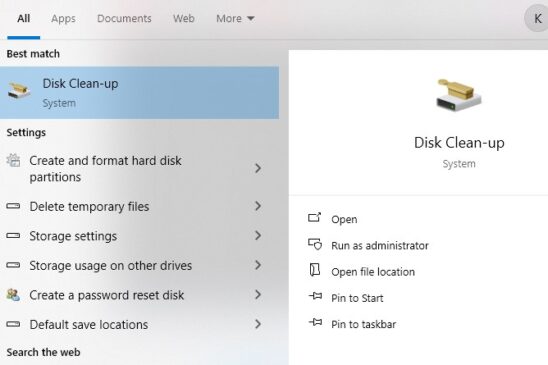
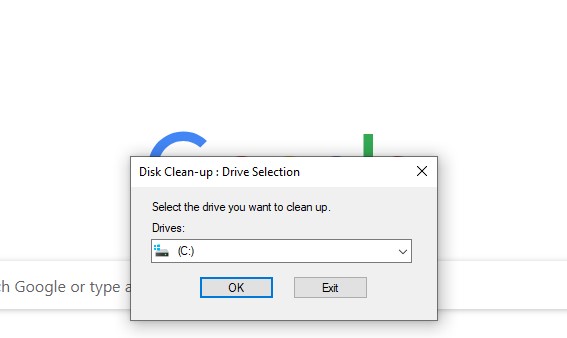
It will show the drive or disk option for which you wish to perform the disk cleanup. Select the drive.
Now it will show the files that can be cleaned or removed from the disk.
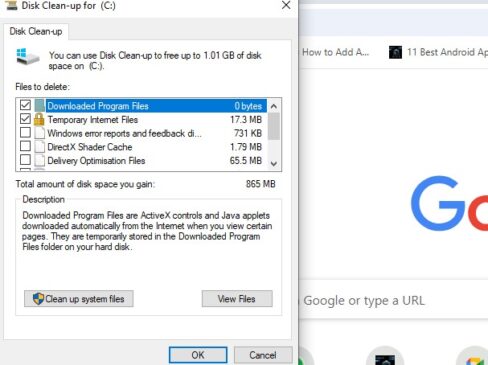
The disk cleanup will remove all the unnecessary files from the PC and it might also resolve the Windows event ID 1001 error.
Also ReaD: Ways to Fix Google Chrome, Failed Virus Detected Message
6. Update your System’s Antivirus Program
Update the antivirus of your PC. Just check if the antivirus needs an update. If yes, then update the antivirus. You can find the updates online or can use the paid update.
Also Check: How to Create Videos with Text Prompt in Grok AI
7. Increase the size of Virtual Memory Allocation
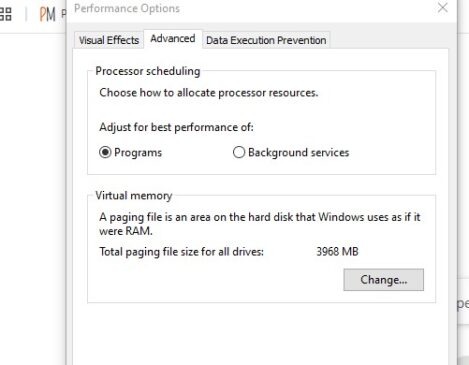
The issue can also occur because of low virtual memory allocation. This can also cause the error. To resolve this issue, you need to increase the size of the virtual memory in the paging file. Paging file in Windows is an area that is reserved for virtual memory usage, the windows uses this space as if it were RAM.
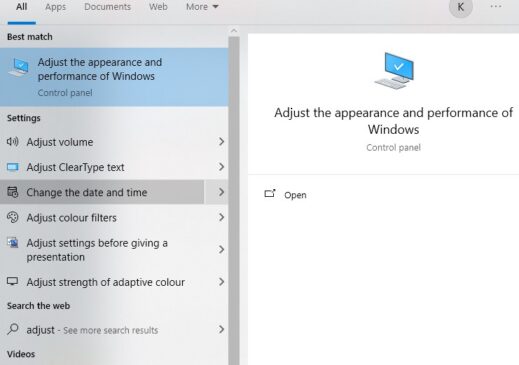
1. Search Windows for the option Adjust the Appearance and Performance of Windows.
2. Now look for the Advanced option under the Virtual memory, and now click on the Change button.
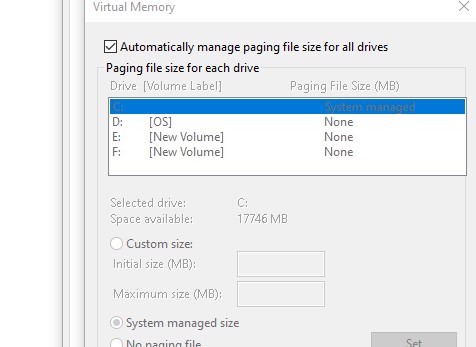
3. Under the Virtual Memory, uncheck the ‘Automatically manage paging file size for all drives’ checkbox. Now you have to set a custom size for the virtual memory.
8. Run the SFC Command
If you see the error event ID 1001 in Windows that persists in the event viewer, you need to run the SFC command. To run the SFC command you need to follow the given steps:-
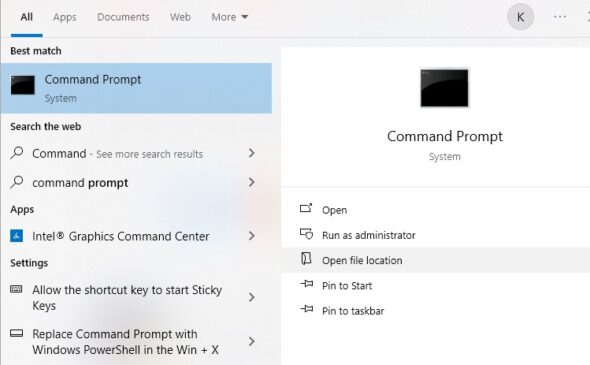
1. Open the Command Prompt in Windows. Right-click on the Command Prompt and select ‘Run as administrator’.
2. In the command prompt area, type the command shared below:-4
DISM.exe /Online /Cleanup-image /Restorehealth
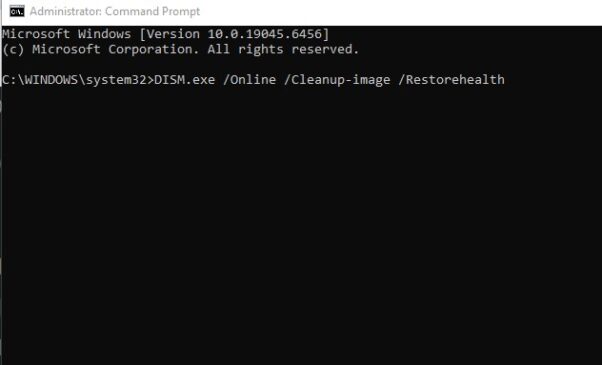
3. After this run the SFC command on the command prompt
sfc /scannow
So, these were the methods to fix Event ID 1001 Error in Windows. If you have any questions, please don’t hesitate to contact us. Stay tuned to TechAdvises.


Comments are closed, but trackbacks and pingbacks are open.