
Google Chrome is one of the most used web browsers by users. It is more secure, easy to use, and offers a multitude of features. You can also download different files from various websites.
Why Google Chrome Shows This Message: “Failed – Virus Detected”
Google Chrome basically scans the file to download using its built-in security. If you try to download a file from a website, it has to pass two security scans: first one is Google Chrome’s built-in security system and the Windows’ security system.
If any of the processes think that the file may contain a virus, it will not allow the file to be downloaded, and an error message will be displayed by Google Chrome: ‘Failed – Virus Detected’.
To avoid this, you must download the files from the official websites. Avoid using third-party websites, especially for software downloads. Whenever you receive the message “Failed – Virus Detected“, do not assume that your PC is infected with this virus. It has sensed a potential threat in the file you are about to download.
Sometimes, Google Chrome displays false alarms even when downloading files from the official website. To check whether the file actually contains a virus or not, you can use the VirusTotal scanner to scan the file. To scan the file, copy the download link of the file and paste it into the URL bar of the website.
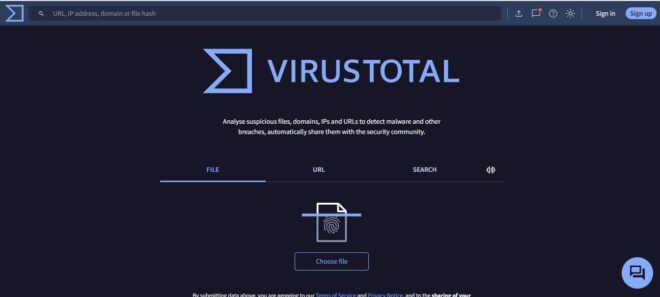
Virus total will share a scan report on the basis of which you can identify whether the file actually contains virus or Google chrome is giving a false scan. If Virus total shows that the file is free from virus, it means that Google chrome was showing a false alarm. You can download the file else if it shows a virus in the file you should completely avoid downloading the file as it may harm your PC and its important data.
To disable Google Chrome’s safe browsing feature, click on the 3 dots in the top right corner.
Once you are sure that Google Chrome is raising of false alarm then you can bypass the field virus detection message by following the steps and methods shared below.
Also Read: How to Resolve Qbit Torrent Virus Detected Error
1. Change Google Chrome’s Security Settings
Google Chrome has a built-in safe browsing feature, which ensures that your PC does not download files containing virus or malicious code. Once you are sure that VirusTotal report confirms that the file you are about to download is free from virus you can temporarily disable the Google Chrome safe browsing feature.
2. Click on the Settings option.
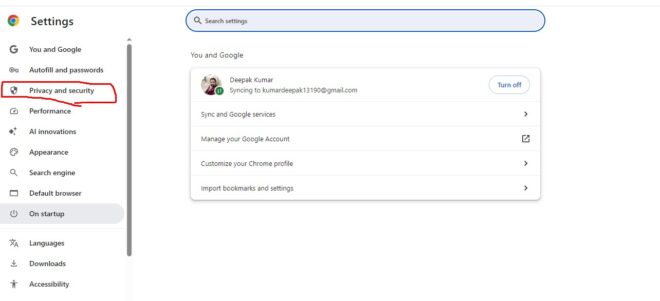
3. Under the settings option, click on privacy and security option.
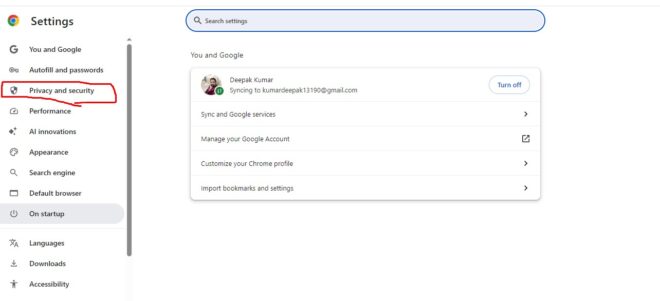
4. Click on the Settings option and then look for the safe browsing mode.
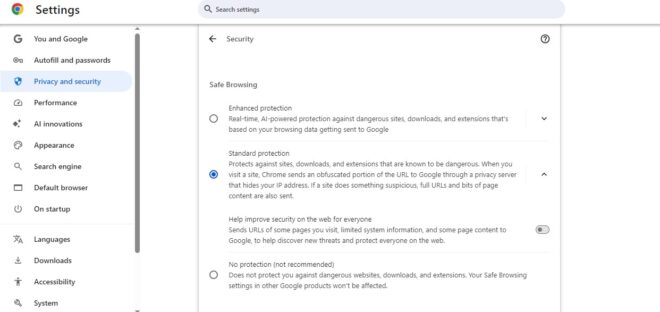
It will show you three options under the safe browsing option: enhanced protection, standard production and no protection just toggle the no protection option.
When you do so, it will show a confirmation dialog box. Click on the turn off button in blue colour.
Let us understand another method to bypass Google Chrome failed Virus detected Message.
Also Read: How to Disable Google Chrome’s Password Manager
2. Temporarily Disable the Windows Security Program
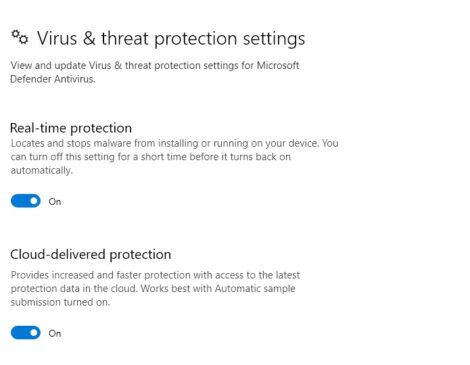
It may happen that the Windows security system might not be allowing the download of the file. Once you have scanned the file from Virus Total and are sure that the file is safe, you may temporarily disable the Windows Security program.
Step 1. Open the Start menu, type Windows Security in the search bar, and press the Enter button.
Step 2: Select “Virus & Threat Protection” from the left sidebar, then turn off the button next to “Real-Time Protection.”
So, these were the methods to bypass Google Chrome’s Failed Virus Detected error. Stay tuned to TechAdvises for more such tech news, tutorials and updates.


Comments are closed, but trackbacks and pingbacks are open.