
Data is the need of the hour, and this data needs to be stored on physical storage devices. Your PC must also have a storage disk. If you have bought a new laptop or PC and are not sure whether your hard drive is HDD or SSD, we will help you out. You can use the ways given below to check if a hard drive is HDD (Hard Disk Drive) or SSD ( Solid State Drive)
1. Using Windows Explorer
1. Right-click on the main drive or Windows drive.
2.Click on the Properties option.
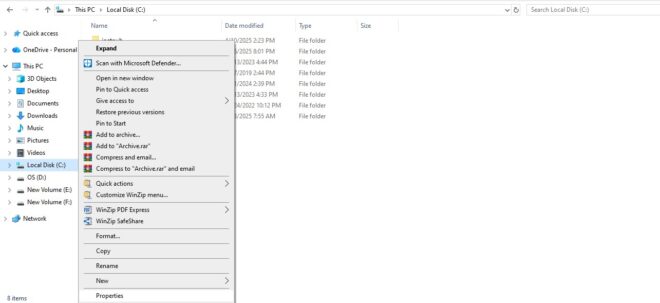
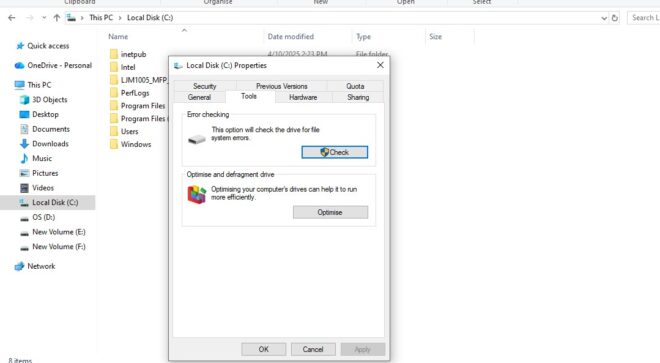
3. Now, click on the Tools option and click on the optimise option.
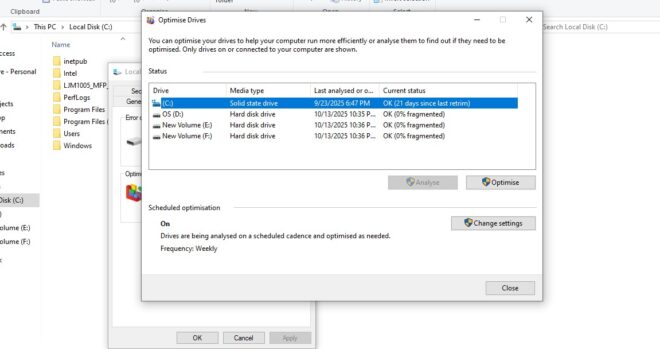
When you click on the Optimize option, it will show all the drives. Under the drive, it is mentioned whether they are HDD or SSD.
Also check: How to Recover Data from Physically Damaged Hard Drive
2. Using the Task Manager
1. Press Ctrl + Shift + Esc to open the Task Manager in your PC
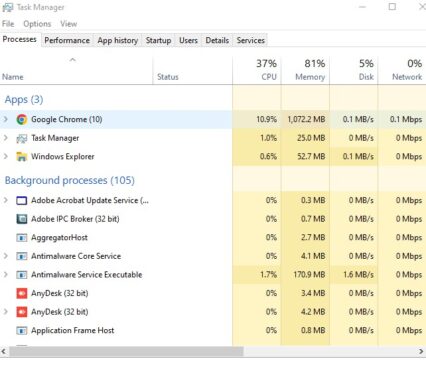
2. Click on the Performance tab.
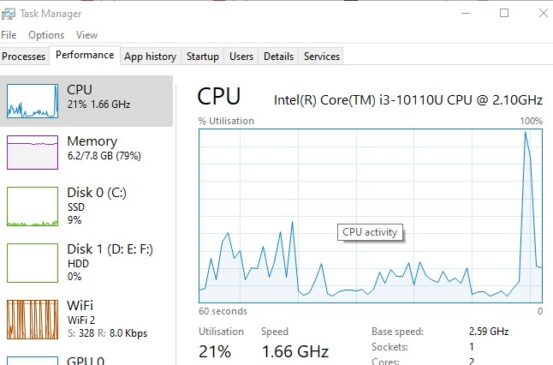
3. The tab will now show different disks named as Disk 0, Disk 1 and under them you can see HDD or SSD.
3. Using PowerShell
1.Open the Windows Search bar and look for the windows Powershell app.
2.Type Get-PhysicalDisk and hit the Enter button.
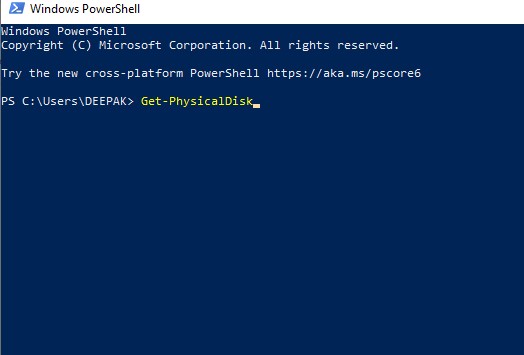
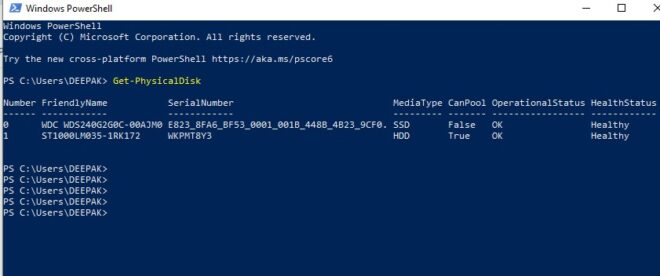
3. It will show all the drives connected to your laptop or PC. It will also show the serial number and whether the drives are SSD or HDD
Also Read: How to Repair Corrupted Memory Card or PenDrive
4. Using Device Manager
1. Click on the Device manager in the windows search bar.
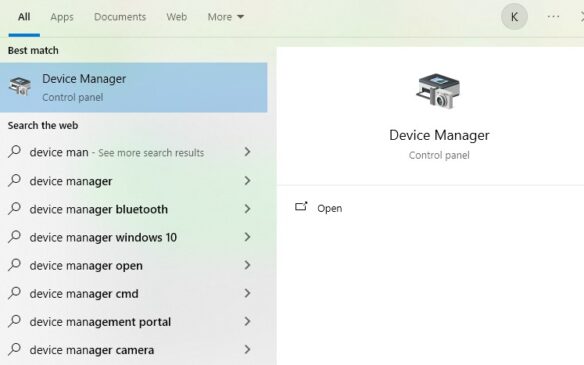
2. It will show all the devices connected to the PC. Look for the Disk drives option in them.
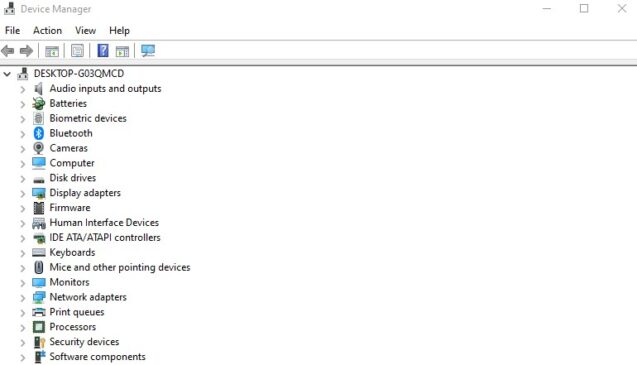
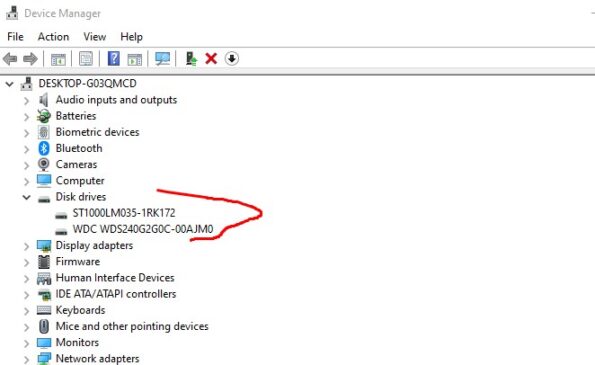
3. It will show all the disk drives connected to your PC.
Also check: How to Set Expiry Date on Google Drive Files
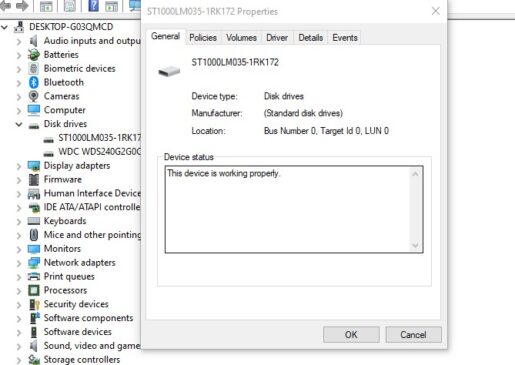
4. Click on a specific drive and it will show all the details about the disk and you can know whether it is an HDD or SSD.
so, these were the 4 ways to check if a hard drive is HDD or SSD. If you face any trouble, feel free to ask us. Stay tuned to TechAdvises for more such Windows tutorials and tech news.


Comments are closed, but trackbacks and pingbacks are open.