
Device Manager is an important utility as it helps to manage different devices connected to your PC. You can make necessary changes to the settings of different devices. To access the Device Manager of your Windows faster, you can simply create a desktop shortcut of the Windows Device Manager.
Create Desktop Shortcut for Device Manager
Let us learn how to create a shortcut on the desktop for the device manager so that you can quickly access it and make the necessary changes.
In the first step, right click on the empty area on the desktop. Then click on the option > New > Shortcut.
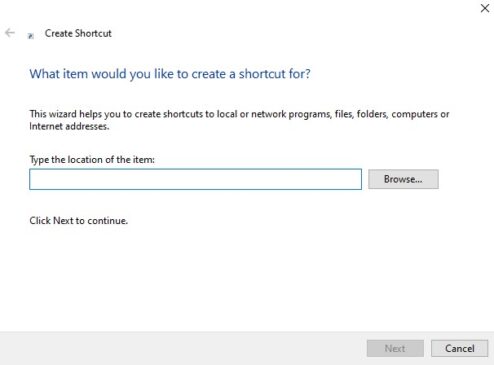
Under the option: Type the location of the item type this: devmgmt.msc and then proceed further to click on the Next button.
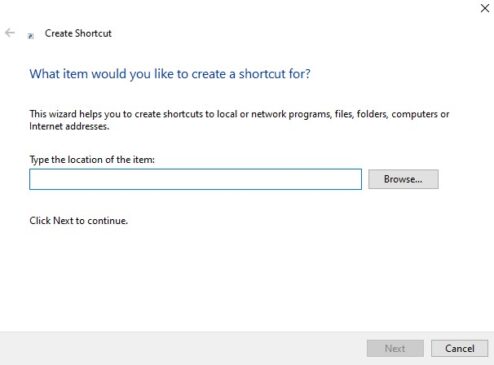
You might be asked to provide the name for the device’s new shortcut that you have created. You can name it Device Manager. Now, click on the Finish option.
Also check: Easy Way to Record Audio on Windows 11
Now check the Desktop area of your Windows PC. You will notice a desktop shortcut for Device Manager.
Now, right-click on the Device Manager shortcut and select the option Pin to Taskbar.
Also check: Best ways to unzip your Files Easily in Windows 11
So, these were the ways to create device manager desktop shortcut for your PC. Stay tuned to TechAdvises for more such tech tutorials and news.


Comments are closed, but trackbacks and pingbacks are open.