
Google Chrome is one of the most popular and commonly used web browsers among Internet users. Google keeps bringing up news features and updates to Chrome for better speed and more productivity. Google Chrome also lets you save and store your important passwords.
At times, you must have realized that Google Chrome stopped saving passwords. There may be various reasons behind it. In this article, we will learn how to fix Google Chrome not saving passwords.
Methods to Fix Google Chrome Not Saving Password
1. Check if Password Saving is Enabled
You need to make sure that the password-saving option is enabled. Normally, it is on by default, but some Chrome extensions and apps can turn it off without your consent. Follow the steps given below to enable the
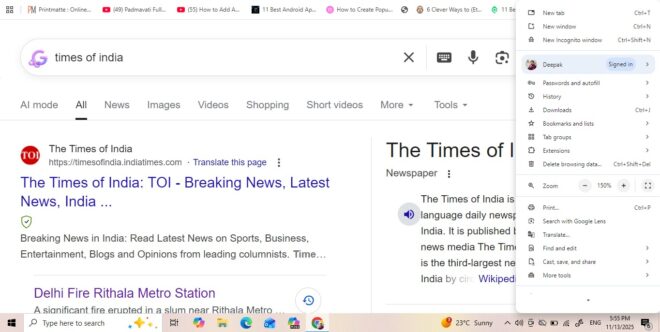
1. Open the Google Chrome browser on your laptop or PC.
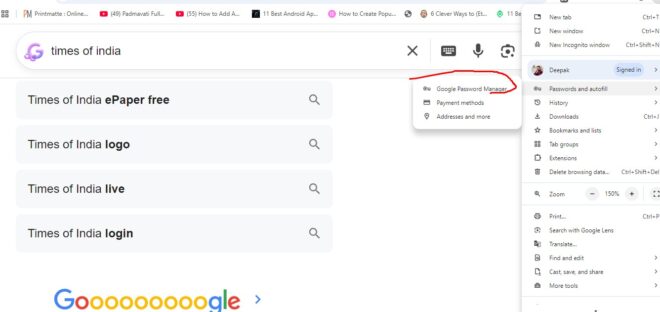
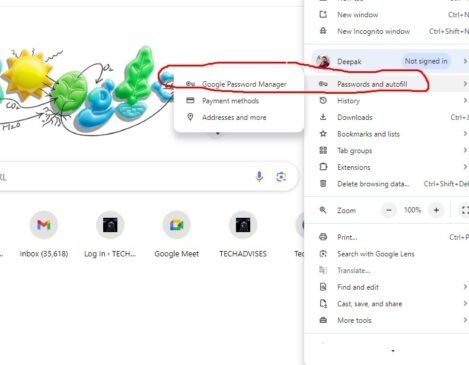
2. Click on the three dots at the top right corner and look for the option Passwords and Autofill, then search for Google Password Manager option, click on that option.
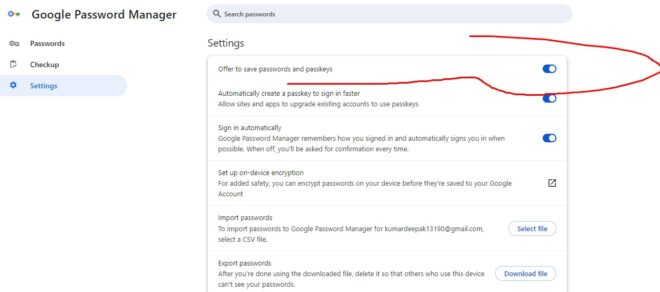
3. Switch to the Settings tab.
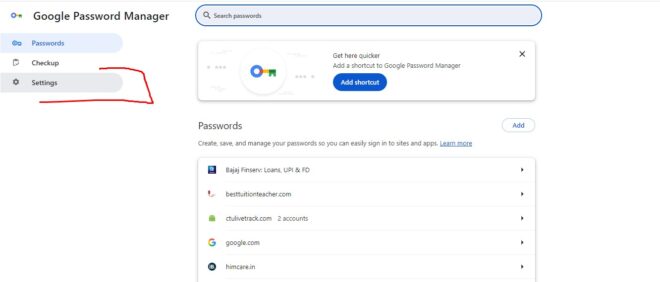
4. Now check whether the option Offer to Save password and passkeys option is enabled. If it is not enabled just toggle it to turn it on.
2. Check the site in Declined Apps and Site
Another reason Google Chrome may not save passwords for a particular website is that you have added the website to the list of Declined apps and sites. Make sure you remove the site from there. Follow the steps shared below.
1. Open Google Chrome Browser on your laptop.
2. Click the three dots at the top right corner and select Passwords and autofill, and then click on the option Google Password Manager.
3. Click on the Settings option in the drop-down menu.
4. Slide down to the Declined apps and site section and check whether the site is listed there or not.
If your site is listed there, remove it from the list so that Google Chrome can save passwords for that site.
3. Reset the Chrome Settings
Another option is to reset your Google Chrome settings.
1. To reset Google Chrome settings, visit the Google Chrome settings section.
2. Click on the Reset Settings option.
3. You will see an option, Restore settings to their original defaults. Click on that option.
4. A confirmation dialog box will pop up on the screen. Just click on the Reset Settings button.
4. Remove the Corrupted Google Chrome Profile.
You can delete the Google Chrome profile that you feel has been corrupted. To delete a corrupted Google Chrome profile, follow the steps given below.
1. Click on your profile icon.
2. Select Manage Profile
3. Click on the settings icon next to the profile name.
4. Click on the three dots visible next to the profile and click on the Delete option to delete the corrupted Google Chrome profile.
That’s all!
Also Check: How to Bypass Google Chrome Failed Virus Detected Message
5. Add the Website Password Manually
If Google Chrome is not saving passwords and you don’t wish to reset the Google Chrome settings, then you should try adding the website password manually.
1. Click on the three dots in the top right corner and then navigate to the Passwords and Autofill >Google Password Manager.
Also check: How to Disable Google Password Manager in Google Chrome
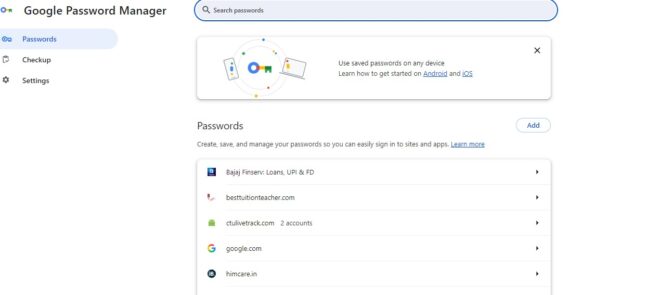
2. Click on Add option to add the website password manually.
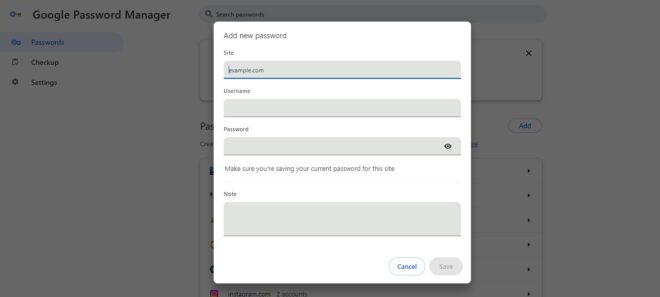
3. Now add the website address, username, and password to save the password manually. You can also add a note.
6. Update your Google Chrome
Another way to get rid of this problem is to check whether you are using an updated version of Google Chrome or not. If not, update the Google Chrome by visiting the Google Chrome settings section.
7. Disable Recently Added Chrome extensions
Google Chrome not saving password this issue on a website can also be because of the new Google Chrome extensions that you recently added. To fix this issue, try removing or disabling the Google Chrome extensions.
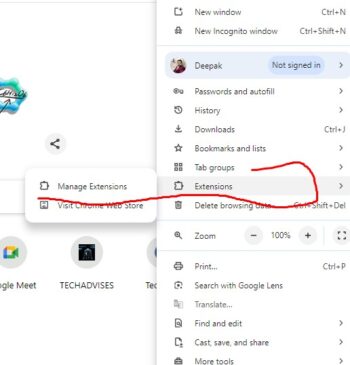
1. Click on the three dots in the top right corner
2. Then click on the Extensions option and then the Manage Extensions option to disable the suspected Google Chrome extension.


Comments are closed, but trackbacks and pingbacks are open.