

NTDLL.dll is a crucial Windows system file that enables Windows Applications to interact with the Windows kernel by providing a Native API ( Application Program Interface). Many of you must have come across the Windows File Explorer NTDLL.dll crash error. This error can occur due various reasons like Corrupted System files, outdated hardware drivers and conflicting third-party shell extensions. In this article, we will learn how to fix File Explorer NTDLL.dll crash error in Windows.
Fix File Explorer NTDLL.dll Crash Error
1. Restart your PC
First and foremost, you should try restarting your PC. Once you restart your PC, it will close all the background processes, apps, and services. Once all the background processes are closed, it may resolve File Explorer NTDLL.dll crash error in Windows
To restart your PC, click on the Restart button. This will restart your Windows PC.
Also Check: Simple Ways to open Msconfig tool in Windows 11
2. Restart Windows Explorer
Another method to fix Explorer NTDLL.dll crash error is to restart the Windows File Explorer.
Step 1: Open Task Manager by typing Task Manager in the Windows search bar.

Step 2: Look for the Processes tab in the Task Manager.
Step 3: Under the Processes tab, look for the Windows explorer process.

Step 4: Right-click on the Windows Explorer Process and click Restart option or just select the Windows Explorer option and then click the Restart task option to restart.
Also Check: Best AI Tools for YouTubers
3. Uninstall and Reinstall your Graphics Driver
This problem can also occur if you have outdated graphic drivers in your PC. You need to uninstall and install them again to fix the NTT.dll file issue.
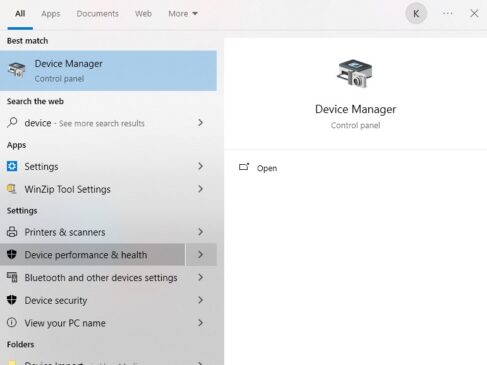
Open the Device Manager from Windows search.
Click on the Display Adapters option.
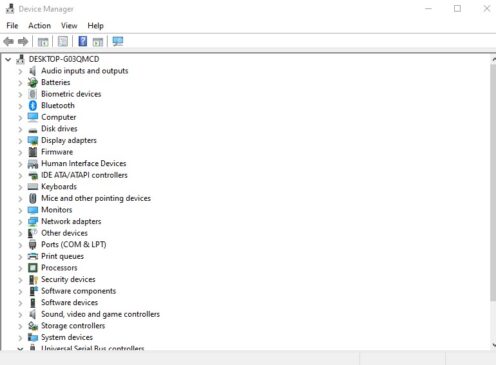
Right-click on the graphics adapter and then click on the Update driver option from the drop-down menu.
Then click on the option Search automatically for drivers.
Now just proceed with the instructions shown on the screen to complete the process.
4. Use Command Prompt (cmd)
Alternatively, you can try using the command prompt to fix File Explorer NTDLL.dll crash error. Open the command prompt window by typing cmd in the search bar. Then type the following commands to resolve the NTDLL.dll error.
1. System File Checker (SFC) : This command scans and repairs corrupted system files.
Type: sfc /scannowand then press the Enter button.
2. Deployment Image Servicing and Management (DISM) : Basically, this command repairs the Windows system image if SFC can’t fix things.
Type this command: DISM.exe /Online /Cleanup-image /RestorehealthAnd then you have to press the Enter button.
3. Re-register the DLL: The following command re-registers thentdll.dllfile.
Type: regsvr32.exe ntdll.dlland press Enter.
5. Compatibility Mode
Right-click the problematic program’s .exe and then click on Properties then the Compatibility tab, then try an older Windows version. This might fix the issue.
so, these were the methods to fix File Explorer NTDLL.dll crash error in your Windows PC. If you have any querie, feel free to reach out to us. Stay tuned to TechAdvises.


Comments are closed, but trackbacks and pingbacks are open.