
RAR is an acronym for Roshal Archive Compressed file, a proprietary archive file format that consists of 1 or more files in a compressed format. These files can not be directly opened on an Android smartphone. For them, you need to use a third-party app or software to open them. In this article, we will learn how to open RAR files on Android mobile phone.
How to Open RAR files on Android
1. Open RAR Files using the RAR app
You can use the RAR App by RARLAB to open the RAR files on your Android smartphone. It can help you create and extract the RAR file on your mobile phone.
1. Download and install the RAR app from the Google Play Store.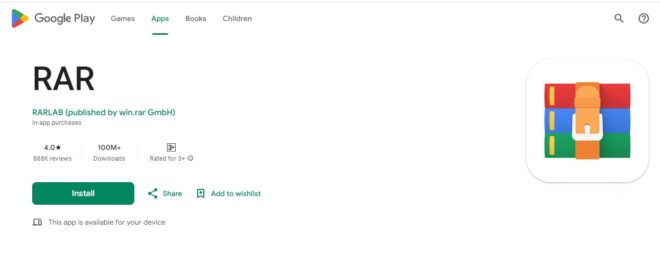
2. Open the RAR app on your Android smartphone and grant the permissions. Provide the file location of the RAR file that you wish to open.
Also Check: How to Fix Error 42125 ZIP Archive is Corrupted
3. It will show the files in the list. Select the RAR file that you wish to open.
4. Now keep the key pressed on the RAR file to extract the file.
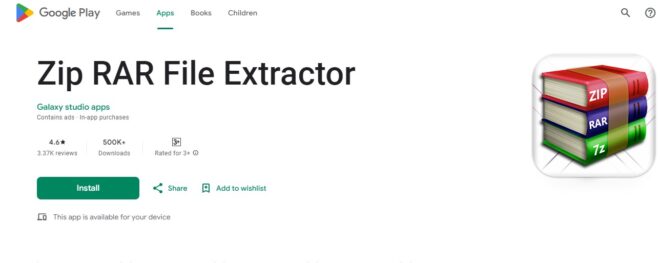
Another app that you can use for extracting RAR files to a specific location on your Android smartphone is ZIPRAR by Galaxy Studio apps. This app has multiple features. It is an ultimate tool for managing and compressing your files easily. You can also use this app to compress all the images and convert them into a RAR file.
You can compress image files of different formats like PNG, JPG, and other file formats like Pict, GIF, TIF, BMP, etc.
3. AZIP Master
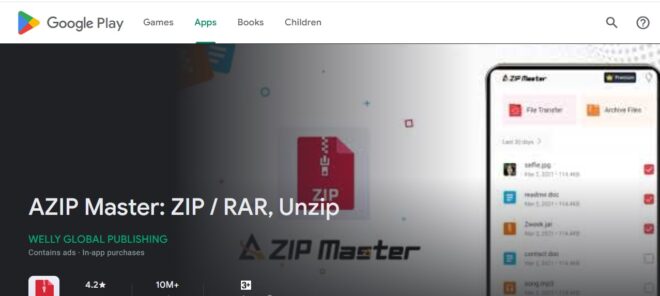
Third in the list of RAR file extractor apps comes AZIP Master by Valley Global Publishing. This is a superb app for creating and extracting multiple RAR Files on your Android smartphone.
It is a powerful file compressor and already has around 20 million plus installations on the Android platform. It also offers Cloud services integration, where you can save your files on cloud storage.
Another interesting feature is that you can set up password protection on your files. It also offers quick file transfer to save your time. The best part is that you can compress and extract multiple files in a single go, which saves a lot of your time.
Also Check: Ways to Fix, Twitter Logs Me Out Problem
4. ZArchiver Application
ZArchiver is another best archive management application for Android mobile phones. Download and Install the app from Google Play Store. You can also use it to open RAR files on your Android mobiles.
1. Download and install the ZArchiver app.
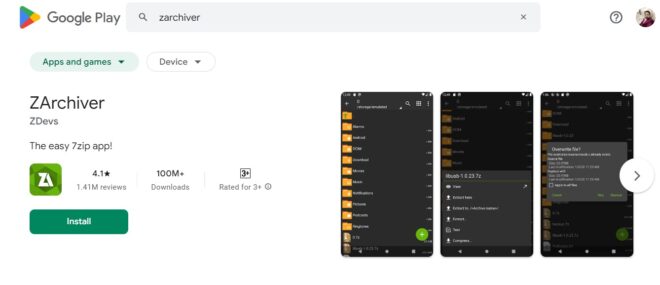
2. In the next step, ZArchiver will ask you to grant permissions. Grant the permissions.
3. Locate the folder where the RAR file has been stored.
4. Click on the Extract here option from the different options that pops up.
5. Click on the Extract To option if you wish for your file to be extracted to some other location. Also specify the location where your file should be extracted.
5. Open RAR Files on Android using B1 Archiver
Another file compression and RAR app is B1Archiver. You can use this application to open the RAR file on android phone.
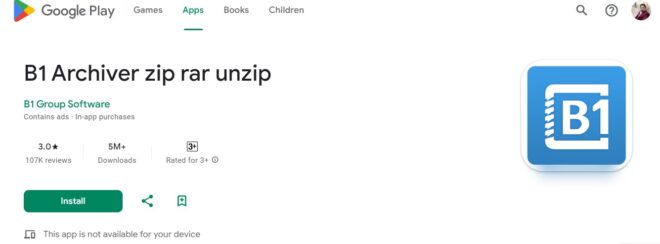
1. Download and install B1 Archiver app.
2. Open the app on your Android phone and grant all the permissions when it asks for permission.
3. Provide the file location where you wish to extract your current RAR file.
4. Long-press on the RAR file that you wish to extract to your mobile phone and select the Extract option.
6. Open RAR files on Android using ZipExtractor by TarrySoft
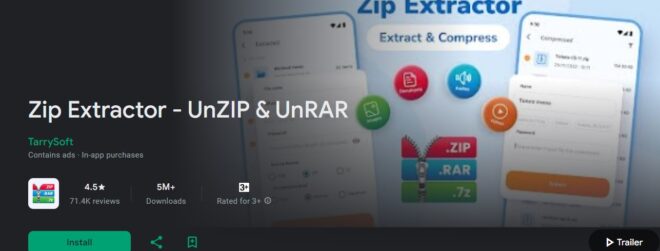
Another application one can use to extract the RAR file easily on Android smartphone is the Zip Extractor by TarrySoft.
1. Download and install the app from Google Play Store.
2. Open the ZipExtractor, RAR extractor Android app, and grant the permissions.
Also Read: Best Cam Scanner Alternatives for Android phone
3. Once the permission is granted, you can see a file manager. Here, you can provide the path where you wish to extract the RAR file on your Android smartphone.
4. Tap on the three dots beside the RAR file and select the Extract option.
So, these were the ways to open RAR File on android smartphone. Stay tuned to TechAdvises for more such RAR File tips, tutorials and technology updates.


Comments are closed, but trackbacks and pingbacks are open.