

Google Chrome lets you download music, videos, and other files from third-party websites and official websites. Sometimes, we might download a file, but Google Chrome automatically deletes the downloaded file. This might be because the file may contain some virus or malicious code. Sometimes, the file might be safe, but still, this happens. In this article, we will learn how to fix Chrome automatically deletes downloaded files.
Note: You should change the settings and follow the methods only if you are sure that the file is actually virus-free and safe to download.
Also Check: How to Bypass Chrome File Download Error, Failed: Virus Detected
1. Turn off Safe Browsing Protection
The files may be deleted because Google Chrome does not allow virus files to be downloaded. For your protection, Google Chrome defaults to a safe browsing mode. You can turn off the protection and allow the download of all the files.
1. Click on the 3 dots in the top right corner of your Chrome window.
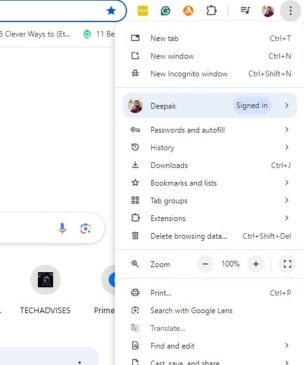
2. Click on the Settings option.
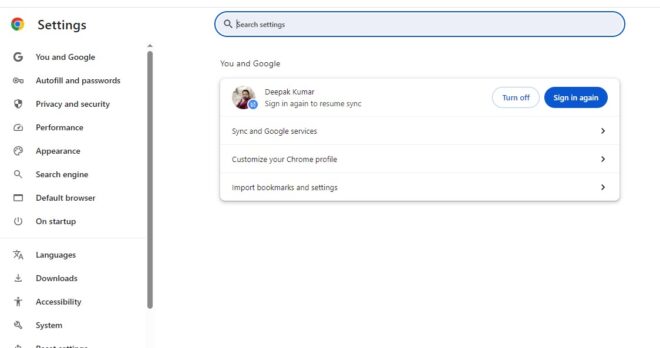
3. Now click on the Privacy and Security option. Under the Privacy and Security option click on the Security option.
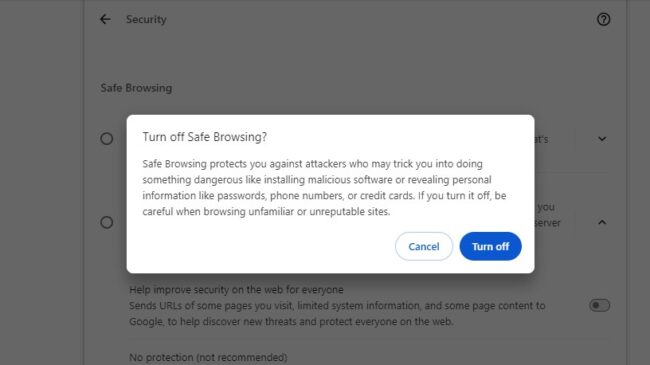
4. Now it will show 3 protection and security modes: Enhanced protection, standard protection and No Protection. Click on the no protection to turn off the Safe browsing mode.
2. Turn Off Virus and Threat Protection Settings
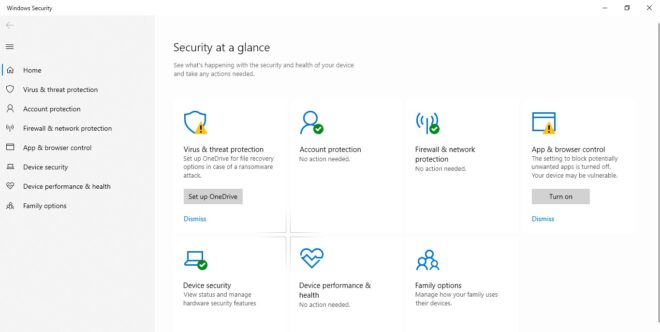
Step 1. Click on the Windows security option from the search bar.
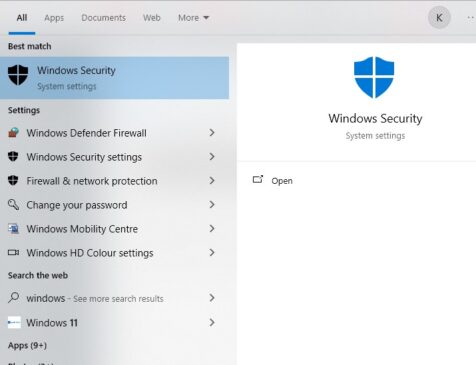
Step 2: Look for the Virus and Threat protection option.
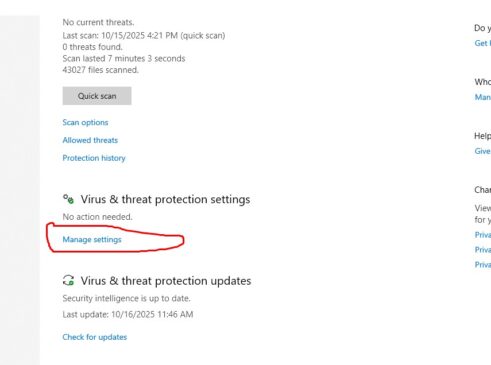
Step 3: Now click on the Manage settings option under the virus and threat protection settings.
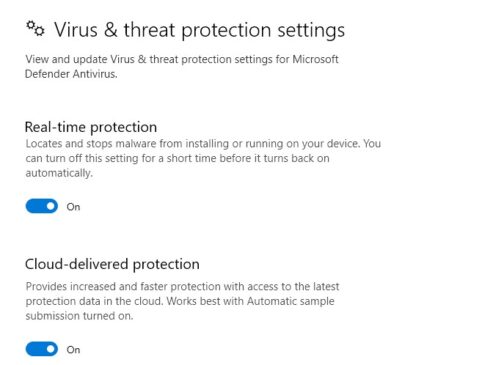
Step 4: Toggle the real-time protection button to turn it off.
Also check: How to Turn on Android Phone Spam Blocker
3. Turn off your System’s Anti-virus, Firewall, or VPN apps
if you are sure that the file that your about to download is safe then you can try disabling the anti-virus of your Windows system, the firewall or the VPN apps. You may also need to add Google Chrome to the firewall exception list if you believe that the download is not getting completed because of a Firewall restriction.
Also make sure that you keep the VPN or proxy disabled until your file is downloaded.
4. Switch Chrome to Original Settings
You can also try switching the Google Chrome to its original setting. This setting might help you download the files easily
Step 1: Open Google Chrome Browser and click on the three dots in the top right corner
Step 2: Now, click on the settings option.
Step 3: Now, click on the reset settings tab.
Step 4: Now you will see an option Restore settings to their original defaults. Click on that option
Step 5: In the last step, you have to click on the reset settings button in blue colour.
So these were the methods to fix Google Chrome automatically deletes downloaded files. Stay tuned to TechAdvises. If you have any doubt, feel free to reach out to us.


Comments are closed, but trackbacks and pingbacks are open.