
GrokAI is an intelligent AI tool designed by xAI. It can be used for real time search, image generation, video generation through images, trend analysis, etc. It also features some pre-designed prompt tools, including Fitness Advice, Legal Writer, and Cover Letter Writer, among others. Today, in this article, we will learn how to create video with text prompts in Grok AI.
The best part about GrokAI tool is that you can also use voice prompts for getting a task done by GrokAI. Isn’t that cool? Audio search is one of the latest trends being implemented by various tools and tech giants.
How to Create Video with Text Prompt in Grok AI
Currently, Grok AI doesn’t have a direct video generator. What you can do is create images with Grok AI through text prompts. With those text prompts you can generate Videos. You can also optimize and customize the video created.
Also Read: How to Chat with WhatsApp AI Chatbots
You can add a custom text on the video just by typing in the text prompt for the changes.
1. Open Grok AI in Google Chrome, Mozilla Firefox or whatever web browser you prefer.
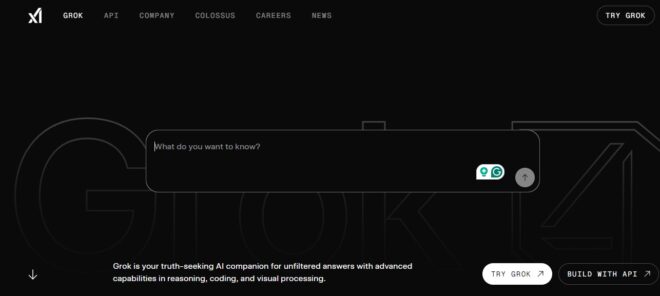
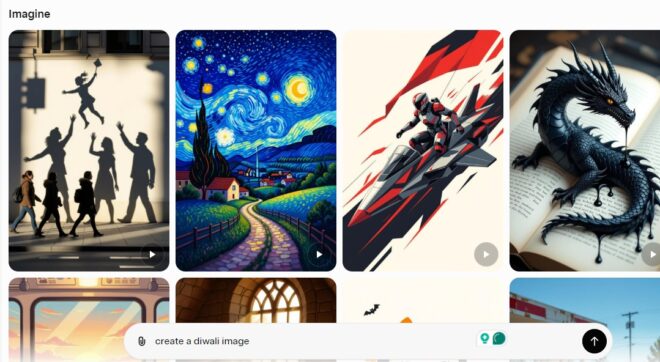
2. Open the Imagine tab from the left side of the page.
Also Check: Instagram’s AI tool to Verify Age
3. Type in the text prompt to generate an image from Imagine. Once the image is created, choose any image and click on the Make video button below the image.
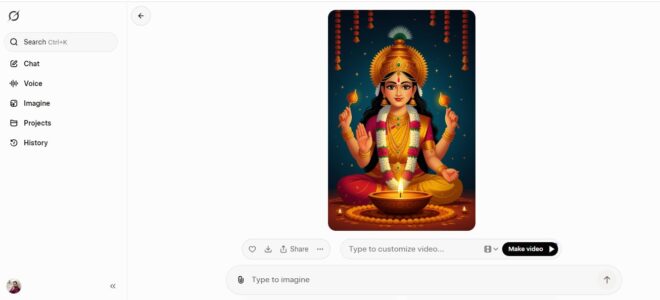
4. In the next step, click on the download button on the left side of the image (marked).
Do you know, you can make changes or edits to the generated video. You can add custom text to the video just by using the text prompts.
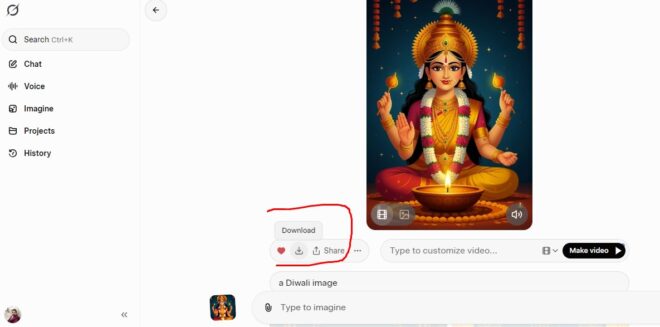
Now, the video will be downloaded to your PC. You can use the image on social media platforms or wherever you want.
Also Check: How to Manage Memories in Perplexity Pro
So, we hope that you have understood how to use Grok AI to create videos with text prompts. Stay tuned to TechAdvises for more such GrokAI tutorials, tech news, and updates.


Comments are closed, but trackbacks and pingbacks are open.